
DiceAudio logo

DiceAudio

DiceAudio helps you manage the audio of your tabletop RPG sessions. Collect the music, ambiences and sound effects you use in one library, build layered scenes that follow what happens at the table, and run your whole session from a single window.

Latest release License GPL-3.0 Windows
DiceAudio

What it does

DiceAudio is made for game masters who want the sound to follow what happens at the table, without wrestling with a media player mid-session.

The audio library

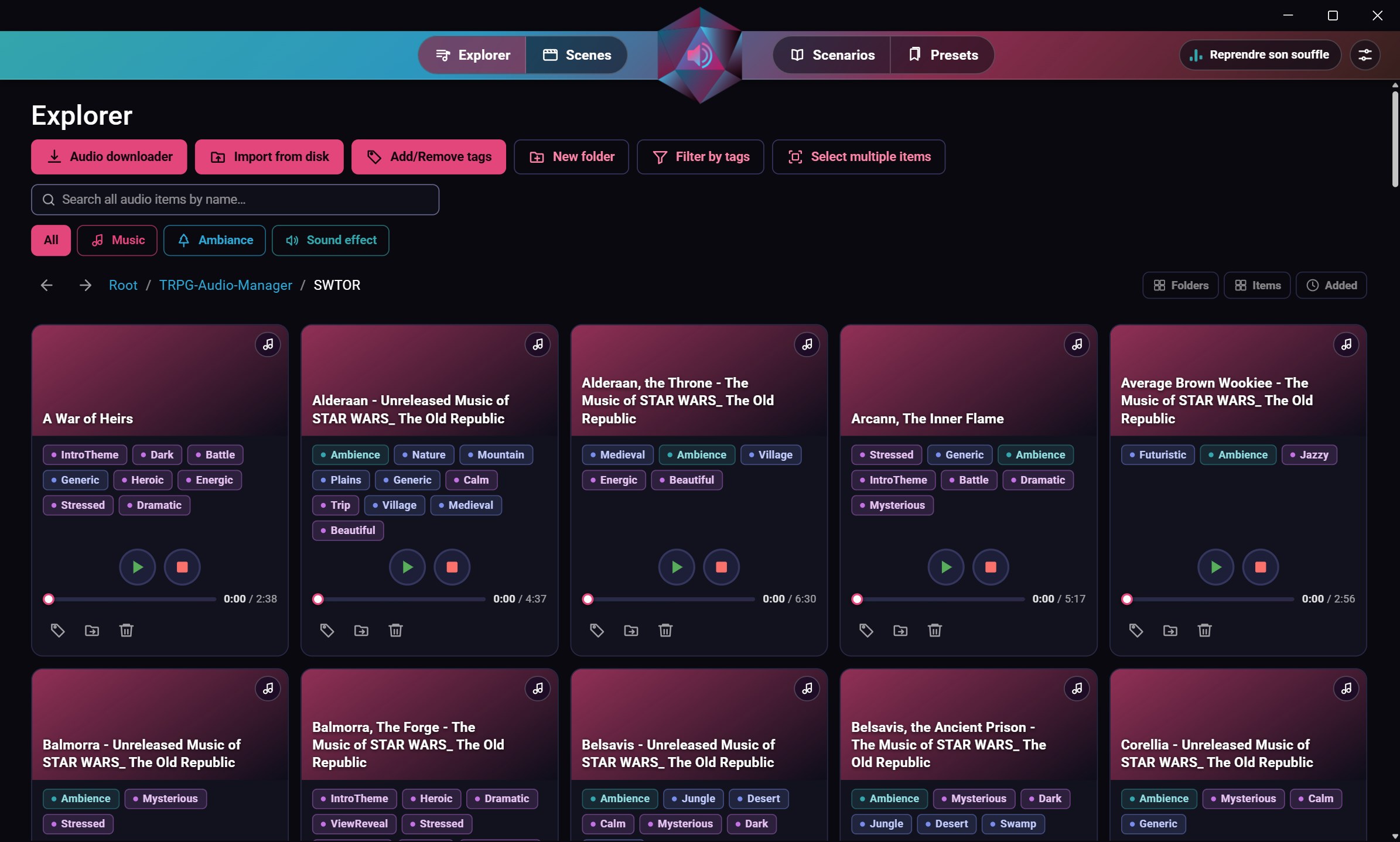
Your audio files are organised in folders and tagged in three categories: type (music, ambience or sound effect), location and expression. You can search the whole library and filter it by type. These folders and tags exist only in DiceAudio: the audio files themselves are kept together in the Audio folder of your data folder.

Importing your audio

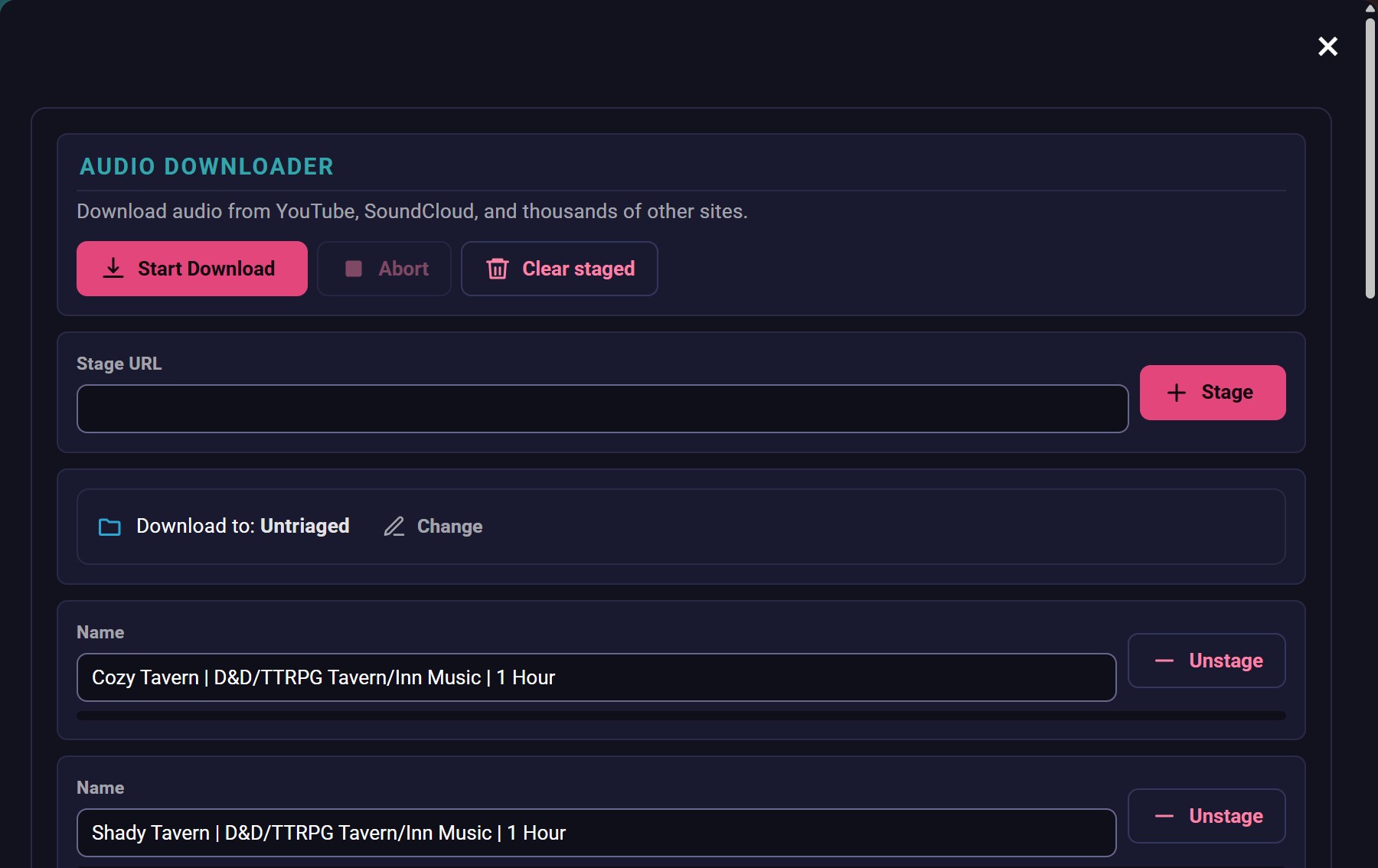
Download from YouTube, SoundCloud and thousands of other sites with the built-in downloader: add several links, choose the destination folder and start the download. Files you already have on your computer are added with Import audio from disk, in the Explorer or on the home page.

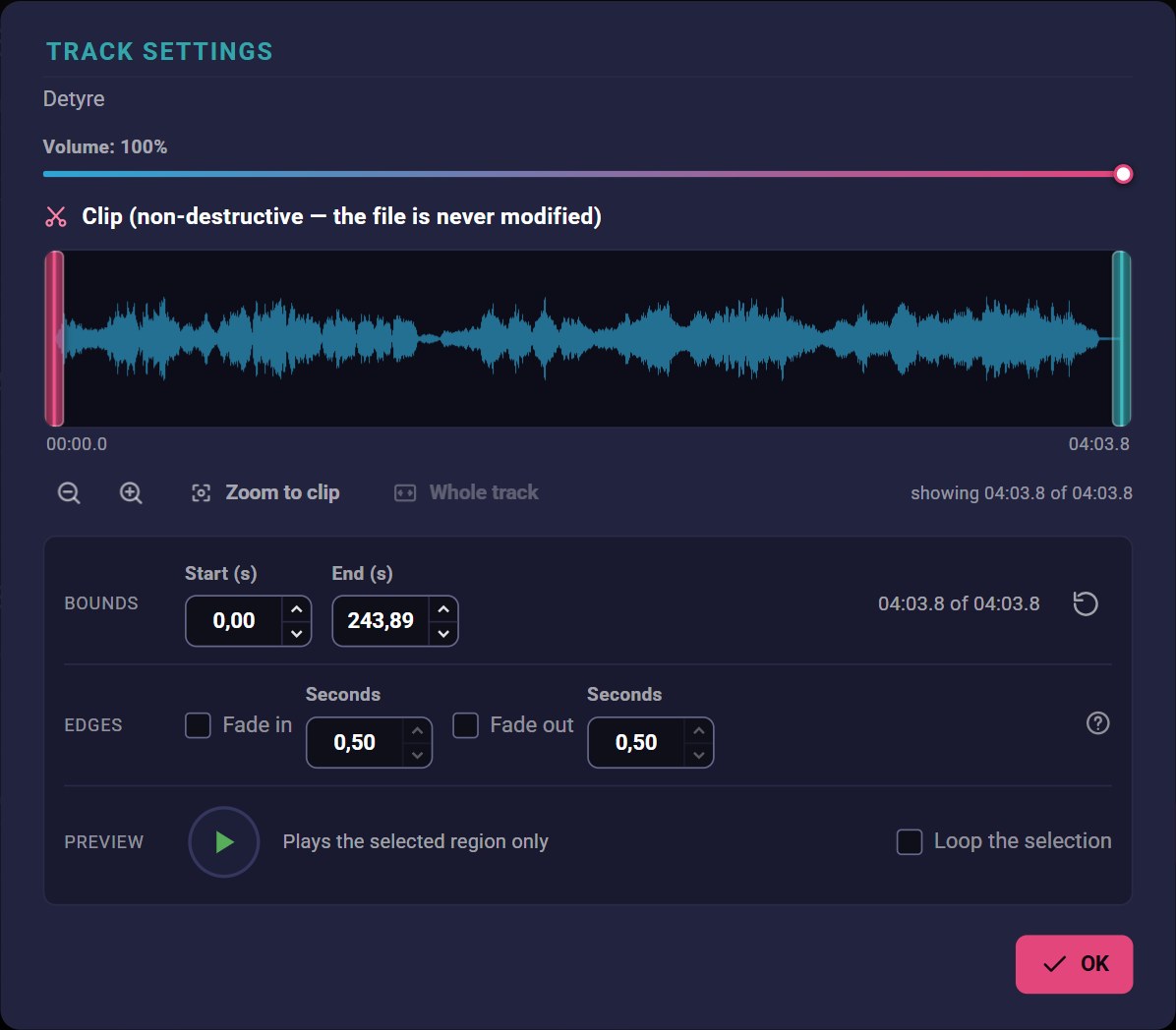
Track settings

Each item has its own volume and can be trimmed to just the part you want to play. The original file is never modified.

Scenes

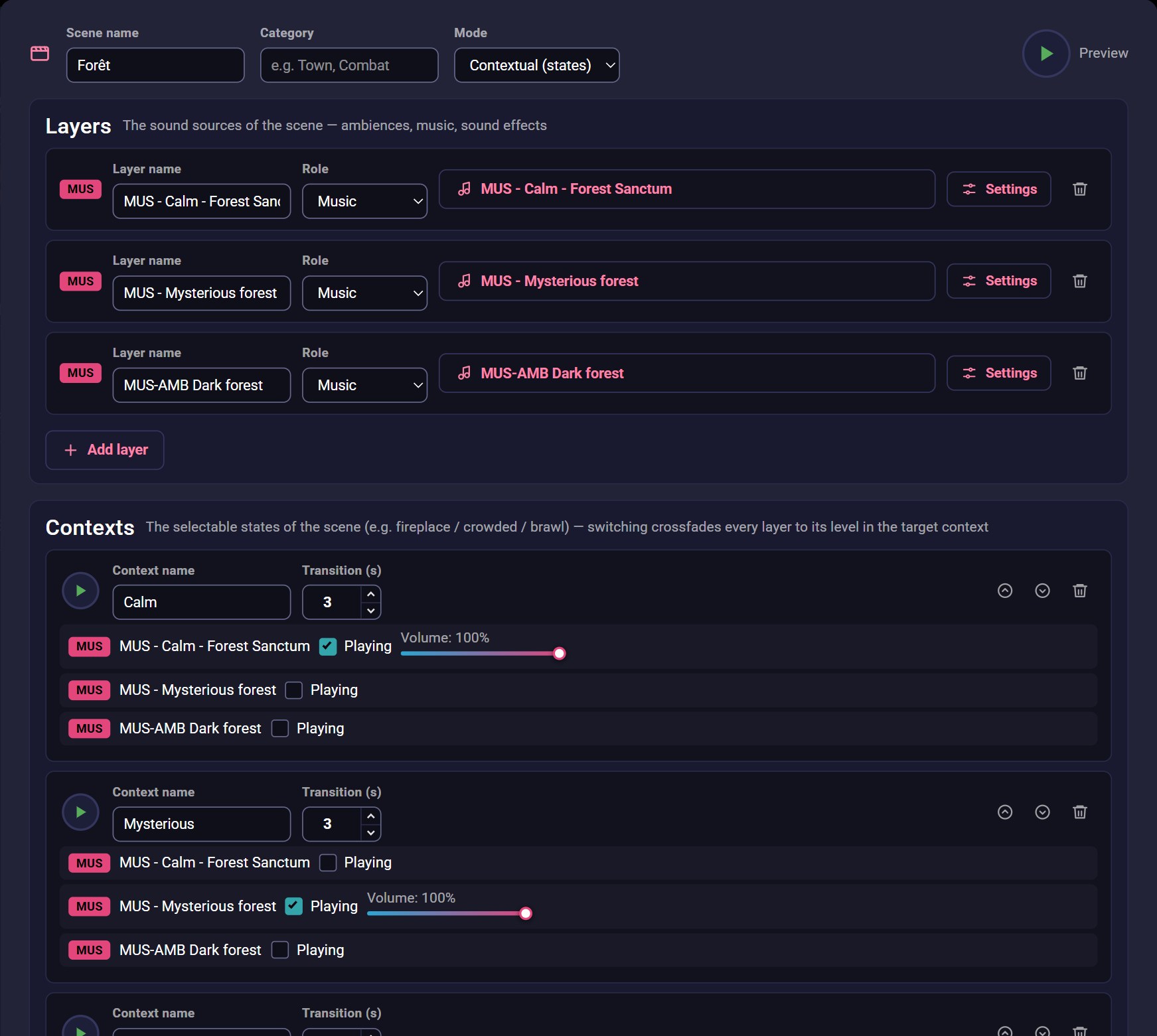
A scene is made of several layers played together. Each layer is an ambience, a music track or a sound effect from your library, with its own role and playback settings.

Contexts

A scene can have several contexts, one for each situation it can be in, such as calm, mystery or brawl. Each context sets the volume of every layer, and switching to another context crossfades the whole scene over the transition time you choose.

Scenarios

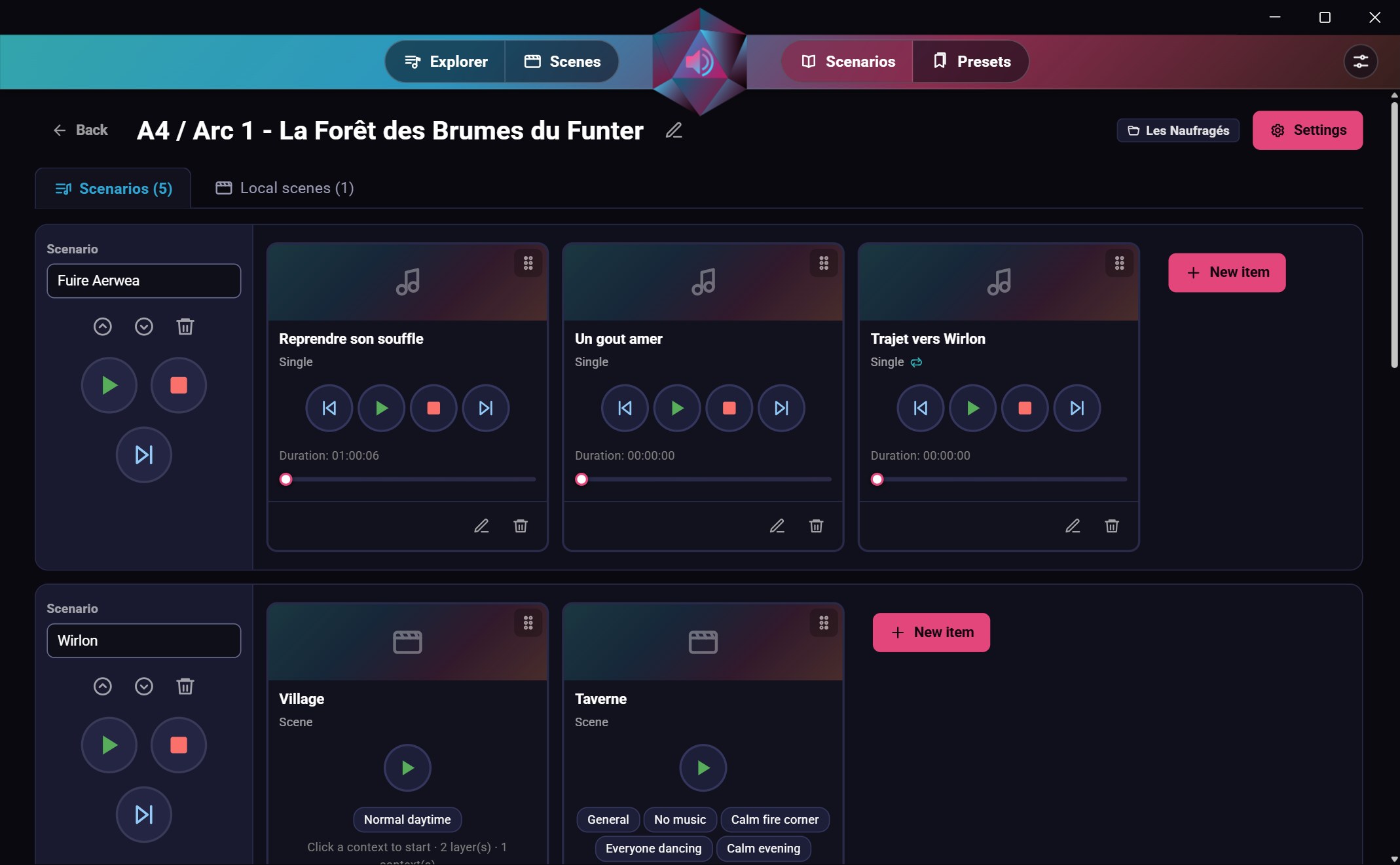
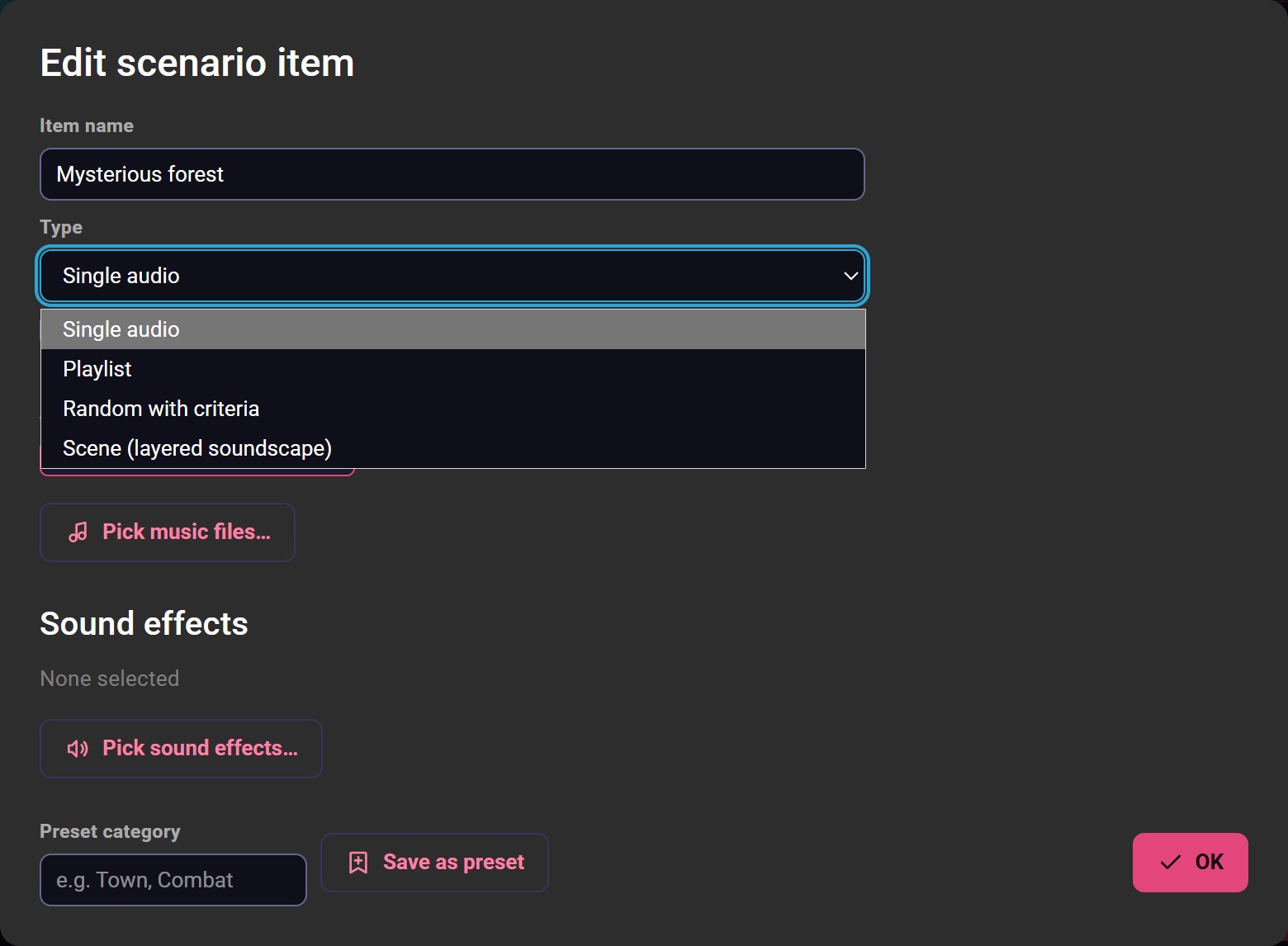
A scenario is the ordered list of what you plan to play during a session, and scenarios are gathered in groups, typically one per adventure or story arc. An item can be a single track, a playlist, a track picked at random from tag criteria, or a whole scene.

Presets

Any scenario item can be saved as a preset with a category, then reused to create a new scene or a new item without starting from scratch.

Remote control

DiceAudio can start a local HTTP server that lets other programs control playback, scenario navigation and scene contexts. Another application can then drive the sound: a Trilium note with the provided widget, or a DiceCombats automation when something happens in a fight. The server is off by default; you switch it on in the settings.

On your machine

Your library, your audio files and your settings stay on your computer, in a folder you can choose. The interface is in English and the app runs on Windows. There is no mobile version yet, but one may come later. DiceAudio is free and open source under GPL-3.0.

A look at the app

These screenshots come from a library I actually use at the table, so they show what a prepared session looks like.

The scene editor

The scene editor

A scene is made of layers and contexts, and both are edited on the same page. Each layer refers to an item from your library and keeps its own settings. Each context sets which layers play, at what volume, and how long the crossfade takes. Switching from Calm to Mysterious mid-session then takes a single click.
Scenarios

Scenarios

A group gathers the scenarios of an adventure, and each scenario lists what you plan to play in order. Single tracks have their own playback controls and progress bar, while scenes show their contexts as buttons, so you can start the right one straight from here.

What a scenario item can be

Types of scenario items

An item is not necessarily a single track: it can also be a playlist, a track picked at random from criteria, or a whole scene. You can attach sound effects to it, and save the whole item as a preset to reuse later.

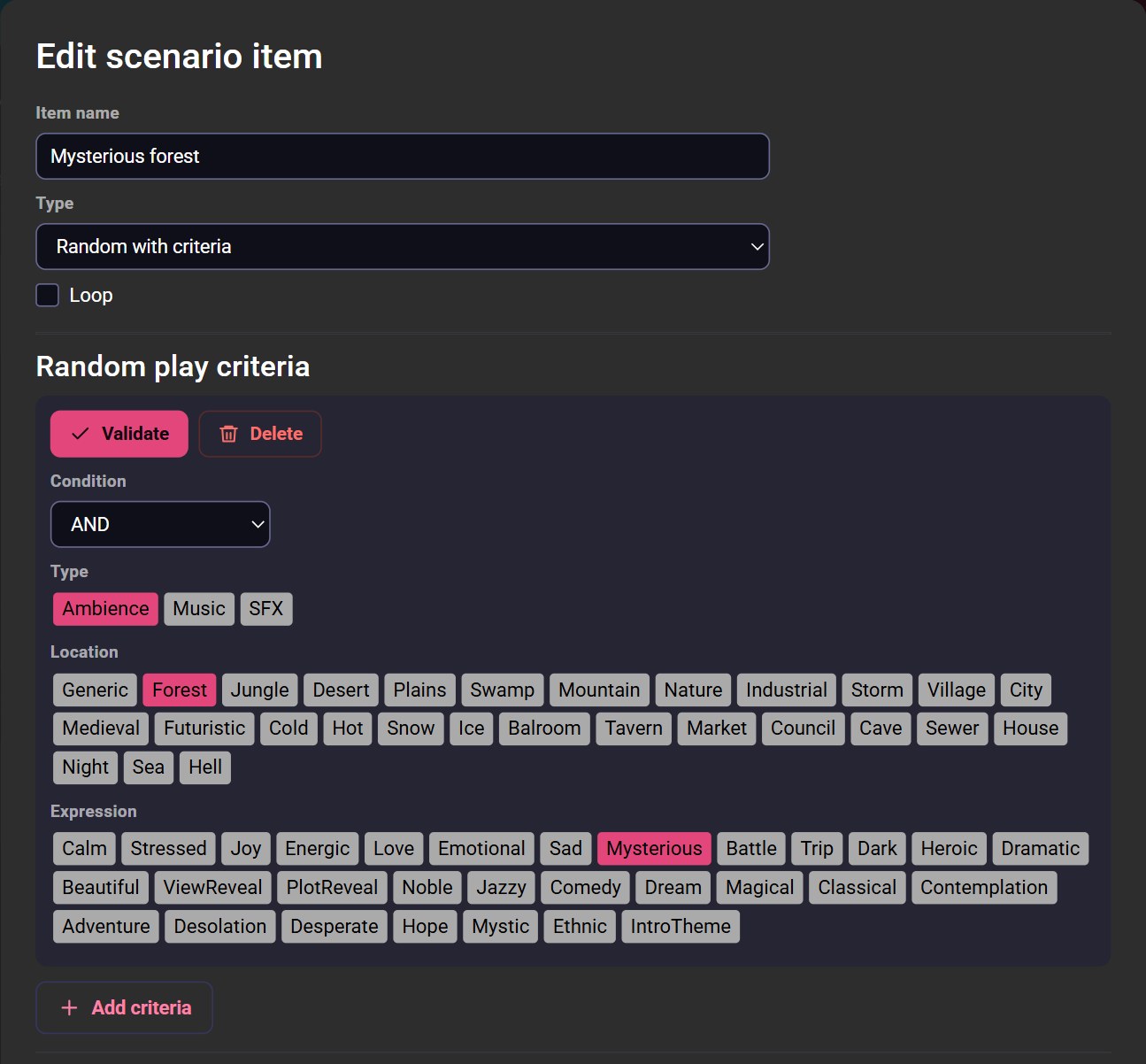
Random playback with criteria

Random playback with criteria

Instead of picking a specific track, you describe what you want to hear and DiceAudio makes the choice. Criteria are built from the tag categories and combined with AND or OR. Ask for a forest ambience with a mysterious expression, for example, and you will hear something different every time the players enter the woods.

The library

The library

Every item keeps its tags, its place in the folders and its playback settings. From its card, you can play, edit, move or delete it.

Folders and filters

Folders and filters

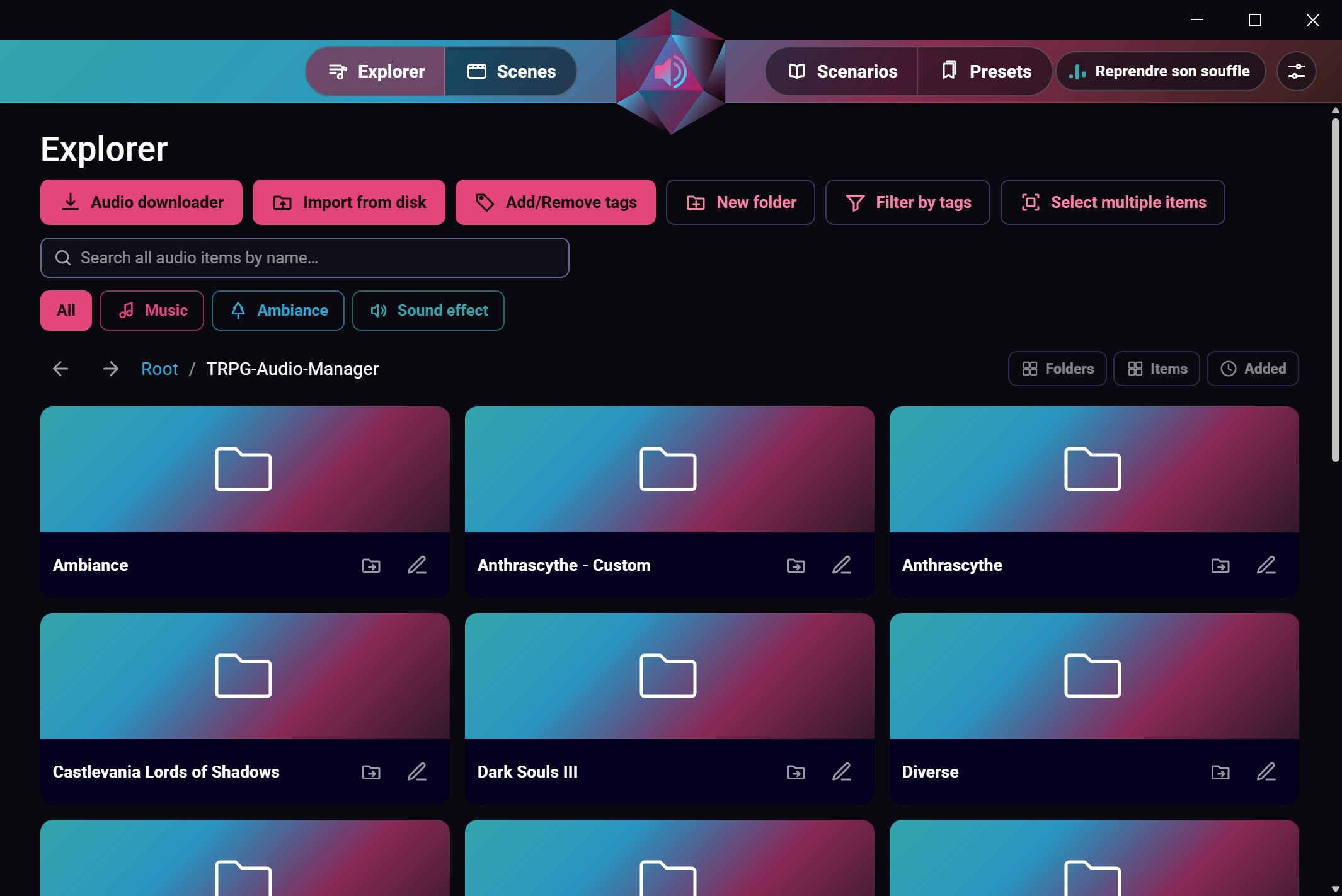
Your library is organised in folders you create yourself. You can search every item and filter by type. The top bar always shows what is currently playing.

The audio downloader

The audio downloader

Paste one or several links, check the list of tracks to download, choose the destination folder and start the download. The tracks land directly in your library, ready to be tagged.

Track settings and clipping

Track settings and clipping

Set the volume of a track and, if you only need a part of it, drag the start and end of the clip on the waveform. The preview plays only the selected region and the original file is never modified.

Remote control and Trilium Notes integration

DiceAudio includes an HTTP server, so any external program can control it through its API. It also comes with a widget for Trilium Notes that puts the DiceAudio player inside your notes, so the right sound sits exactly where you need it in your scenario or script.

The DiceAudio widget in a Trilium note

Setting up the Trilium widget

  1. Create a new Trilium code note called DiceAudioWidgetHTML with the language set to HTML, and paste the content of DiceAudioWidgetHTML.html into it.
  2. Create a child code note of it with the language set to JavaScript frontend, and paste the content of DiceAudioWidgetJS.frontend.js into it.
  3. Create another new note called DiceAudio widget render. In the note's Basic properties, set the note type to Render Note. Then in the note's Owned Attributes, add ~renderNote=DiceAudioWidgetHTML.
  4. Once these steps are done, the note should render. While DiceAudio is running, it should no longer show ⚠ DiceAudio not reachable.
  5. You can now insert this note anywhere, through the Paragraph menu -> Insert (+ button) -> Insert note -> Select the DiceAudio widget render note

Beyond the game table

DiceAudio was developed for tabletop role-playing, but more generally it lets you prepare the sound of an event in advance and then run it live, by hand or from another program. That applies to plenty of situations that have nothing to do with RPGs.

Escape rooms

One scene per room and one context per situation: searching, puzzle solved, alarm, final countdown. With the local API, the room's control system can even trigger these changes automatically.

LARP and murder mystery evenings

A scenario is the running order of the evening: an ambience for each location, and sound effects ready for the key moments.

Amateur theatre and school plays

The scenario becomes a cue list. Each item is a track, a clip of a track or a whole scene, and you step through it as the play goes on.

Haunted houses and Halloween

Layered ambiences that run all night, a context switch when a group walks in, and sound effects at the press of a key.

Board game nights

Some games come alive with sound. One scene per game, a context for the tense moments, and nothing else to manage.

Storytelling

Reading to children or telling stories to a group, with a forest, a storm or a market behind your voice, and each track trimmed to the part you need.

If you use DiceAudio for something I have not thought of yet, feel free to let me know. It can help me shape the next features.

Your data

Your library, scenes, scenarios and settings stay on your computer, in a folder you can choose.

Sharing

Export a scene, a scenario group or your whole library to give it to another game master. The file comes with everything it uses, such as the scenes and audio items of a scenario group. When you import a file, you choose what to do with each item you already have.

Sharing and importing in detail

Backups

DiceAudio backs up your library every day and before every import or restore. You can restore any of these backups from the settings.

Backups in detail

Several computers

Your library and its audio files can live in a folder of your choice, for example one that OneDrive or Dropbox keeps in sync, so that you find the same library on each of your computers.

The data folder in detail

The Dice ecosystem

DiceAudio is part of Dice, a family of free, open-source apps I write for my own game table and share with other game masters. Each app covers a different part of running a tabletop RPG, and they all follow the same principles: no installer, no account, your data stays on your machine, and they talk to other programs over HTTP.

Dice Atrium logo

Dice Atrium

All the Dice apps are gathered in the Atrium.

Visit the Dice Atrium
DiceCombats logo

DiceCombats

Manages the fights at your table: creature sheets built with the fields your system needs, initiative, damage types and resistances, and a combat log. Its automations can call the DiceAudio API, for instance to play a sting on a critical hit. You set up the link yourself, in the settings of both apps.

Visit the DiceCombats page

Install

No installer and no account are needed. The app stores its data on your machine.

Build from source

You need the .NET 10 SDK and the MAUI workloads installed. Everything else is restored from NuGet.

git clone https://github.com/YannCharbon/DiceAudio.git
dotnet workload install maui-windows maui-android
dotnet publish DiceAudio/DiceAudio.csproj -f net10.0-windows10.0.19041.0 -c Release -p:RuntimeIdentifierOverride=win10-x64 -p:WindowsPackageType=None -p:IncludeAllContentForSelfExtract=true -p:PublishReadyToRun=true -p:IncludeNativeLibrariesForSelfExtract=true

Contribute

Issues and ideas

If you find a bug or have an idea for a new feature, open an issue on the repository.

Pull requests

Contributions are welcome. Please document them and follow the style of the existing code.

License

DiceAudio is licensed under GPL-3.0-or-later. Its source code is open and will remain open.

Support the project

DiceAudio is free, and I develop it in my spare time, so updates and fixes can take a while. If it is useful at your table, a donation helps me keep working on it.

Donate with PayPal

AI usage notice

I started developing DiceAudio in September 2023 as part of an older project that was never released, when I did not yet consider AI coding tools reliable enough for this kind of work. Until early 2026, I wrote the entire codebase myself. As these tools have improved rapidly, I have started using Claude Code to help me implement new features faster. I enjoy writing code, but what I value even more is having time to work on my TTRPG scenarios. Using AI for part of the development work gives me more time for that creative side of the hobby. If the use of AI in the project is a concern for you, I completely understand if you would rather not use DiceAudio. I do, however, want to make one thing clear: AI is a development tool here. The features, design choices and overall direction of DiceAudio still come from me, as a game master building a tool for other game masters.